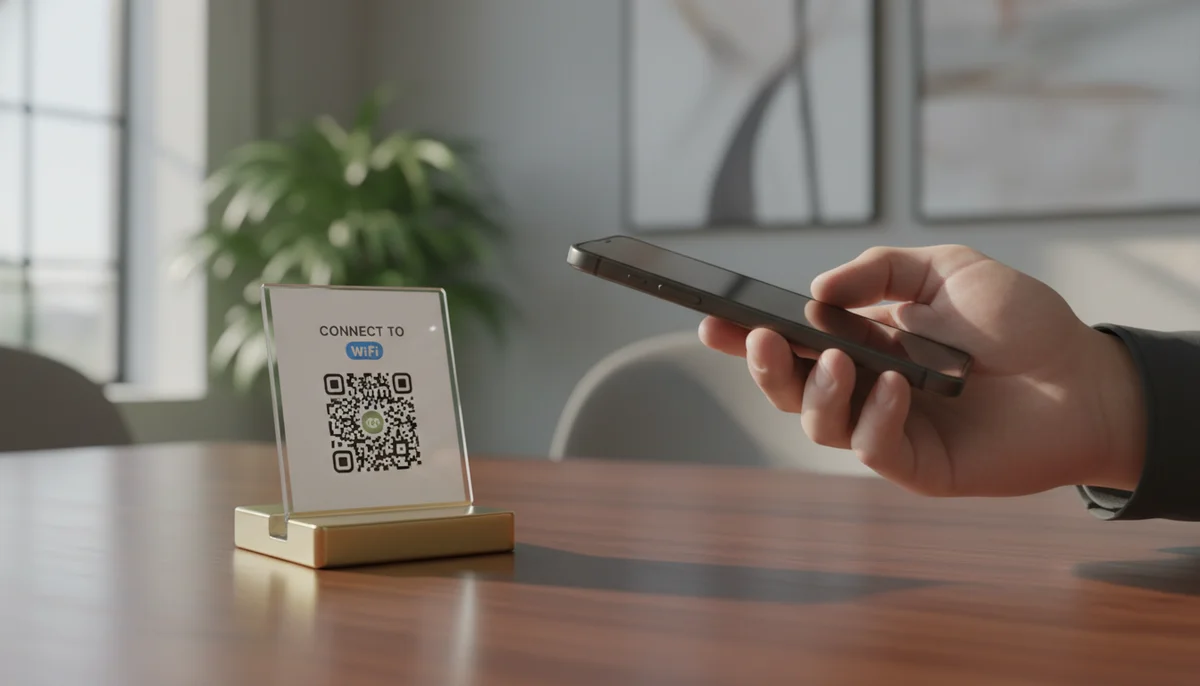
WiFi QR Code Generator: Connect Guests & Offices Instantly
Generate a WiFi QR code effortlessly to share your network password with guests and office visitors. Learn how to create a QR code for WiFi access, connecting devices ins
Simplify Connectivity: Your Guide to Creating a WiFi QR Code for Guests and Offices
In today's hyper-connected world, seamless internet access is not just a convenience; it's an expectation. From welcoming guests into your home to ensuring productivity in a bustling office, the process of connecting to WiFi can often be a surprising source of friction. Fumbling for passwords, typing long character strings, and navigating complex network settings can lead to frustration and wasted time.
But what if connecting to WiFi was as simple as scanning a picture? Enter the WiFi QR code – a game-changer for effortless network access. This comprehensive guide will walk you through everything you need to know about creating, customizing, and deploying WiFi QR codes, transforming the way people connect in your home or workplace.
The Modern Challenge: WiFi Password Woes
Think about the last time you had a guest over or a new employee joined your team. One of the first questions invariably asked is, "What's the WiFi password?" This seemingly simple request often kicks off a series of minor inconveniences:
- Typo Troubles: Long, complex passwords designed for security are prone to human error when typed manually.
- Security Risks: Sharing passwords verbally or writing them down on sticky notes can expose your network credentials to unintended eyes.
- Time Consumption: Explaining how to find the network, which security type to choose, and dictating a password takes valuable time, especially in a busy office environment or a large event.
- Repetitive Strain: For businesses with high foot traffic, like cafes or hotels, constantly providing WiFi details can become a significant operational overhead.
These small hurdles accumulate, detracting from the overall experience for both the host/business and the user. The good news is, there's a brilliantly simple solution that eliminates all these pain points: the WiFi QR code.
What Exactly is a WiFi QR Code?
A WiFi QR code is a specific type of Quick Response (QR) code designed to store your WiFi network's credentials. When a user scans this QR code with their smartphone or tablet camera, their device automatically detects the network name (SSID), password, and encryption type, prompting them to connect instantly. No typing, no errors, no fuss.
It acts as a digital bridge, translating complex network information into a scannable format that nearly any modern device can understand and utilize. This technology leverages the power of QR codes to streamline a ubiquitous task, making it accessible and secure.
The Unparalleled Benefits of Using a WiFi QR Code
Implementing WiFi QR codes offers a myriad of advantages that extend beyond mere convenience:
1. Unmatched Convenience
This is the most immediate and obvious benefit. Guests, clients, or employees no longer need to ask for the password or manually input character by character. A quick scan and they're online. This simplicity significantly enhances user experience, leaving a positive impression.
2. Enhanced Security
Instead of verbally sharing a password that could be overheard or writing it down where it might be lost or stolen, a QR code encrypts this information visually. While the data itself (SSID, password) is encoded in plain text within the QR code, the act of scanning means the password isn't lingering in easily readable formats. You control where the code is displayed, adding a layer of physical security. It also means you can create a separate guest network with its own QR code, keeping your primary network details completely private.
3. Professionalism and Modernity
For businesses, providing a WiFi QR code demonstrates a forward-thinking approach to customer service and operational efficiency. It’s a modern touch that aligns with today's tech-savvy clientele, projecting an image of professionalism and attention to detail.
4. Reduced Support Calls and Inquiries
Especially in offices, hotels, or public venues, staff often spend considerable time helping people connect to WiFi. A clearly displayed WiFi QR code drastically reduces these inquiries, freeing up staff to focus on more critical tasks.
5. Branding Opportunities
Beyond just providing connectivity, a custom-designed WiFi QR code can integrate seamlessly with your brand identity. Incorporate your logo, use brand colors, or add a custom frame to make the QR code an aesthetic asset rather than just a functional utility. This ties into the overall user experience and reinforces your brand.
6. Error-Free Connection
Manual input is a prime source of errors. A QR code eliminates typos, ensuring that guests connect to the correct network with the right password every single time, without the need for troubleshooting.
How a WiFi QR Code Works Under the Hood
A WiFi QR code isn't magic; it simply encodes a specific string of data that WiFi-enabled devices are programmed to recognize. This string follows a standardized format:
WIFI:T:<encryption_type>;S:<network_ssid>;P:<network_password>;H:<hidden_network_boolean>;;
Let's break down the components:
WIFI:: This prefix tells the scanning device that the following data pertains to a WiFi network.T:<encryption_type>: Specifies the security protocol. Common types includeWPA,WEP, ornopass(for open, unsecured networks). WPA/WPA2/WPA3 are the most common and secure options.S:<network_ssid>: This is your WiFi network's name (Service Set Identifier). It's case-sensitive.P:<network_password>: The actual password for your WiFi network. It's also case-sensitive.H:<hidden_network_boolean>: An optional field. Set totrueif your network SSID is hidden, otherwisefalseor omit it.
For example, a WiFi QR code for a network named "MyOfficeWiFi" with password "SecureAccess123" and WPA2 encryption would encode the string:
WIFI:T:WPA;S:MyOfficeWiFi;P:SecureAccess123;;
When a smartphone scans this code, its operating system reads this string, parses the components, and then automatically configures the network settings and prompts the user to connect.
Step-by-Step: How to Create a WiFi QR Code
Creating a WiFi QR code is a straightforward process, even if you're not tech-savvy. Follow these steps to generate your own in minutes:
Step 1: Gather Your WiFi Network Details
Before you begin, you'll need three crucial pieces of information about your WiFi network:
- Network Name (SSID): This is the name your WiFi network broadcasts (e.g., "Home_Network," "Office_Guest_WiFi"). It's case-sensitive, so note it down precisely.
- Password: The exact password for your network. Also case-sensitive.
- Encryption Type: The security protocol your network uses (e.g., WPA/WPA2/WPA3, WEP, or none). Most modern networks use WPA2 or WPA3. You can usually find this in your router's settings or your device's WiFi connection details. If unsure, WPA/WPA2 is a safe bet for most home and office networks.
Step 2: Choose a Reliable WiFi QR Code Generator
The internet offers many tools, but for simplicity and reliability, you'll want a dedicated wifi qr code generator. Our platform provides a specialized tool for this exact purpose.
Navigate to our dedicated WiFi QR Codes generator. This ensures you're using a tool specifically designed for this data type, minimizing errors and maximizing compatibility. For general QR code creation, our main Free QR Code Generator is also an excellent option that supports WiFi codes among many others.
Step 3: Input Your Network Information
On the wifi qr code generator page, you'll find fields corresponding to the details you gathered in Step 1:
- Network Name (SSID): Enter your WiFi network's name here.
- Password: Type in your WiFi password accurately.
- Encryption: Select the correct security protocol (WPA/WPA2, WEP, or None) from the dropdown menu.
- (Optional) Hidden Network: If your network's SSID is hidden, check the corresponding box. Most networks are not hidden.
Double-check all entries for accuracy, paying close attention to case sensitivity. A single typo will render your QR code useless.
Step 4: Generate and Customize Your QR Code
Once your details are entered, click the "Generate QR Code" button. Your unique WiFi QR code will instantly appear.
Now comes the fun part: customization. For professional use in offices or for a personal touch at home, you'll want your QR code to look good. Our platform allows you to:
- Add Your Logo: Embed your company logo or a relevant icon in the center of the QR code. This not only reinforces branding but also helps users identify the QR code's purpose.
- Change Colors: Adjust the foreground and background colors to match your brand guidelines or home decor.
- Choose Frame Shapes: Select a frame or eye design that complements your aesthetic.
Leverage our Custom QR Design options to make your WiFi QR code visually appealing and brand-consistent. A well-designed QR code is more likely to be scanned and leaves a better impression.
Step 5: Test Your WiFi QR Code
This step is CRUCIAL. Before printing and deploying, always test your newly generated QR code.
- Use multiple devices: Scan the QR code with at least two different smartphones or tablets (e.g., an iPhone and an Android device) that are not currently connected to the network.
- Verify connection: Ensure each device correctly prompts you to
connect to wifi with qr codeand successfully joins the network without manual intervention. - Check for errors: If it fails, revisit Step 1 and Step 3 to ensure all details are entered correctly.
Testing prevents the frustration of distributing a non-functional QR code.
Step 6: Download, Print, and Deploy
Once tested and confirmed working, download your WiFi QR code in a high-resolution format (e.g., PNG, SVG, or JPG).
Consider where you will display your qr code for wifi password:
- For Guests at Home: Print it on a small card, frame it, or incorporate it into a decorative sign in your living room or guest bedroom.
- For Offices/Businesses: Print on sturdy cardstock, laminate it, or use adhesive stickers. Display it prominently in reception areas, meeting rooms, break rooms, or client waiting areas. Ensure it's at eye level and easily accessible for scanning.
- For Events/Conferences: Include it in event brochures, signage, or presentation slides.
Ensure the print size is adequate for easy scanning from a reasonable distance. Too small, and it becomes difficult to scan; too large, and it might look clunky.
Best Practices for Deploying Your WiFi Network QR Code
To maximize effectiveness and maintain security, consider these best practices:
- Strategic Placement: Put the QR code where it's most convenient for users. For example, on conference room tables, guest room nightstands, or near the reception desk.
- Clear Instructions: While intuitive, a small label like "Scan for Free WiFi" or "Connect to Guest WiFi" can enhance user experience.
- Durability: If placed in high-traffic areas, print on durable material or laminate the printout to withstand wear and tear.
- Regular Updates: If you change your WiFi password (which is good security practice), remember to generate a new WiFi QR code and replace the old one.
- Guest Network Consideration: For businesses, it's highly recommended to create a separate, isolated guest network specifically for visitors. This keeps your primary internal network secure and prevents guests from accessing sensitive company resources. The
qr code for wifi passwordshould then lead to this guest network. - Aesthetics: A well-designed, branded QR code adds to the professional appeal of your space. Don't just print a black and white box; make it part of your environment using our Custom QR Design tools.
Real-World Applications: Who Benefits Most?
The versatility of the wifi network qr code makes it valuable across various sectors:
- Homeowners & Renters: No more shouting passwords across the room or repeating them to every visitor. Just point them to the QR code.
- Small Businesses & Startups: Impress clients and make it easy for new team members to get online quickly.
- Cafes, Restaurants & Bars: Offer seamless customer WiFi access, encouraging longer stays and repeat business.
- Hotels & Resorts: Enhance the guest experience by placing QR codes in lobbies, rooms, and common areas, reducing calls to the front desk.
- Co-working Spaces: Simplify onboarding for new members and provide reliable access for all.
- Event Organizers: Ensure attendees at conferences, workshops, or trade shows can easily
connect to wifi with qr codewithout bottlenecking registration desks. - Educational Institutions: Provide easy access for students and faculty in libraries, common rooms, and lecture halls.
The Future of Connectivity: Beyond Static WiFi QR Codes
While most WiFi QR codes are static (meaning the encoded information is fixed), our platform is constantly evolving. Our dedicated WiFi QR Codes solution is designed for maximum compatibility and ease of use. It focuses on the core functionality of connecting to WiFi seamlessly.
For scenarios where you might need to update the WiFi password frequently without reprinting the QR code, dynamic QR codes (which can be updated after creation) might seem appealing. However, for WiFi, the underlying security protocol (the WIFI: string) is typically static by design. If you change your WiFi password, the content of the QR code needs to change. Therefore, generating a new static WiFi QR code is usually the most straightforward and secure approach. Our focus remains on providing robust and easy-to-use tools like our specialized wifi qr code generator to make connectivity as simple as possible.
Conclusion: Embrace Effortless Connectivity
The days of complicated WiFi access are over. By leveraging a wifi qr code generator, you can provide a superior, more secure, and hassle-free experience for everyone who needs to connect to wifi with qr code in your home or office. It's a simple, elegant solution that embodies modern convenience and professionalism.
Ready to simplify your WiFi access? Head over to our WiFi QR Codes generator today and create your first effortless connection point. Experience the power of instant connectivity and free yourself from the tyranny of manual password entry!
Ready to Get Started?
Explore our tools to enhance your QR code workflow
Free QR Code Generator
Create unlimited QR codes for free with our easy-to-use generator. No signup required.
Start CreatingCustom QR Design
Customize QR codes with your brand colors, logos, and shapes. Stand out with professional designs.
Design QRWiFi QR Codes
Let guests connect to your WiFi with one scan. No more sharing passwords—create a QR code for your network.
Create WiFi QRAll tools are available with a free plan to get you started
Frequently Asked Questions
Find quick answers to common questions about this topic
What is a WiFi QR code and how does it work?
A WiFi QR code contains your network's SSID, encryption type, and password. When scanned, it automatically configures a device to connect to the specified Wi-Fi network without manually entering credentials, streamlining the connection process significantly. This is especially useful for guests.
Is it secure to share my WiFi password via a QR code?
Sharing your WiFi password via a QR code is generally secure, as it prevents others from seeing or typing your password. However, anyone with access to the QR code can connect. For added security in offices, consider using a guest network or frequently changing passwords.
Can I create a WiFi QR code for a hidden network?
Yes, you can create a WiFi QR code for a hidden network. However, users scanning the code might still need to manually confirm that the network is hidden on their device. Ensure the SSID is correctly embedded in the QR code for successful connection attempts.
What information do I need to generate a WiFi QR code?
To generate a WiFi QR code, you typically need your Wi-Fi network's Service Set Identifier (SSID) (its name), the encryption type (e.g., WPA/WPA2, WEP, or none), and the network password. All this information is crucial for automatic connection.
How can guests connect to my WiFi using a QR code?
Guests can connect by simply opening their smartphone's camera or a dedicated QR code scanner app and pointing it at the WiFi QR code. Most modern smartphones will recognize the code and prompt them to connect to the network with a single tap, making it incredibly convenient.

QR Technology Specialist
Sarah has over 8 years of experience in digital marketing and QR code technology. She specializes in helping businesses implement effective QR code strategies.