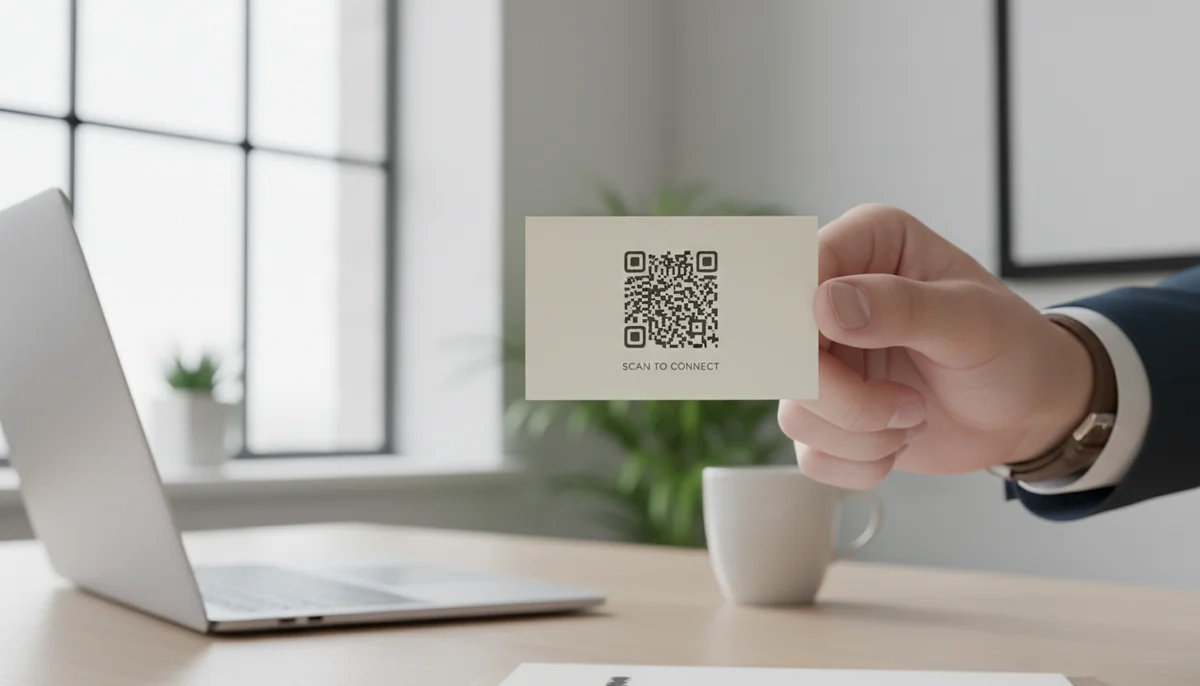
How to Create a QR Code for a Business Card: vCard Guide
Learn how to create a QR code for your business card using a vCard QR code generator. Share contact info instantly, enhance networking, and make a lasting digital impress
Revolutionize Your Networking: How to Create a QR Code for a Business Card (vCard QR Guide)
In today's fast-paced business world, first impressions matter more than ever. While the traditional paper business card has been a staple for decades, it often falls short in the digital age. Imagine a world where exchanging contact information is instant, accurate, and memorable – a world powered by the humble QR code. Specifically, a vCard QR code. This comprehensive guide will walk you through everything you need to know about integrating a QR code for a business card into your networking strategy, transforming how you connect with clients, partners, and colleagues.
The Evolution of the Business Card: Why QR Codes are Essential
For generations, business cards have been the quintessential tool for exchanging professional contact details. They’re tangible, offer a quick reminder of who you met, and establish a professional presence. However, they come with inherent limitations:
- Manual Data Entry: Every piece of information on a traditional card has to be manually typed into a phone or CRM system, a process prone to errors and often skipped entirely.
- Limited Information: A physical card has finite space. While you can include your name, title, company, phone, and email, there's little room for links to your LinkedIn, portfolio, social media, or even a brief company description.
- Static Nature: Once printed, the information on a business card is set in stone. If your phone number changes, your job title shifts, or your company rebrands, all your existing cards become obsolete.
- Environmental Impact: Millions of paper business cards are printed and discarded annually, contributing to waste.
Enter the QR code. By embedding a QR code onto your business card, you instantly bridge the gap between physical and digital. A simple scan can transfer all your crucial contact details directly into a smartphone's address book, open your portfolio, or link to your social media profiles. This isn't just about convenience; it's about efficiency, professionalism, and making a lasting impact.
What is a vCard QR Code?
A vCard QR code is a specific type of QR code designed to store and transmit contact information in the vCard format. The vCard format is an industry standard for electronic business cards, allowing applications like smartphone contacts apps, email clients, and CRM systems to easily interpret and import contact data.
When someone scans a QR code for a business card containing vCard data, their device prompts them to save the contact directly. This eliminates manual typing, ensures accuracy, and makes it incredibly easy for new contacts to add you to their network.
The Power of a Digital Handshake
Think of a vCard QR code as a digital handshake. It’s a seamless way to share:
- Full Name
- Job Title & Company
- Phone Numbers (Work, Mobile, Fax)
- Email Addresses
- Website URLs
- Physical Address
- Social Media Profiles (LinkedIn, Twitter, etc.)
- Even a small profile picture or a note!
Instead of a potential client having to manually input your details, which they might postpone or forget, a quick scan does all the work. This vastly increases the likelihood of them retaining your information and connecting with you later.
Why Every Professional Needs a Digital Business Card QR Code
Transitioning to a digital business card QR code isn't just a trend; it's a strategic move for modern professionals. Here's why:
- Instant & Accurate Information Exchange: No more typos or lost information. A single scan transfers all your pre-programmed details directly to a phone's contact list. This is the primary advantage of a
contact qr code generator. - Enhanced Professionalism: Demonstrating tech-savviness and efficiency leaves a strong, modern impression. It shows you're forward-thinking and value convenience.
- Comprehensive Details: Unlike the limited space on a physical card, a vCard QR code can hold an extensive amount of information – multiple phone numbers, email addresses, social media links, company websites, and more.
- Measurable Performance (with Dynamic QRs): When you use dynamic QR codes, you can track how many times your code is scanned, where it's scanned, and even by what type of device. This provides invaluable insights into your networking efforts.
- Eco-Friendly: Reduce your reliance on paper, contributing to a greener environment and aligning with sustainable business practices.
- Cost-Effective in the Long Run: While there might be an initial investment in dynamic QR code services, the ability to update your information without reprinting hundreds of cards saves money and resources over time.
- Future-Proofing Your Contact Details: As your career evolves, a dynamic vCard QR code allows you to update your information instantly without needing to reprint.
Step-by-Step Guide: How to Create a vCard QR Code
Creating a vCard QR code is a straightforward process, especially when using a dedicated online generator. Follow these steps to generate your own professional digital business card.
Step 1: Choose a Reliable vCard QR Code Generator
The first and most crucial step is selecting the right tool. You need a robust vcard qr code generator that allows you to input all necessary fields and offers customization options. Our vCard QR Codes tool is specifically designed for this purpose, providing a user-friendly interface to build your digital contact card.
Step 2: Input Your Contact Information
Once you're on the vCard QR code generator page, you'll see various fields to enter your contact details. Be thorough and accurate.
- Basic Information:
- First Name
- Last Name
- Prefix/Suffix (Optional)
- Title
- Company
- Contact Details:
- Phone Numbers (Mobile, Work, Home)
- Email Addresses (Work, Personal)
- Website URL
- Address Information:
- Street, City, State, Zip Code, Country (for your office or business location)
- Social Media & Additional Links:
- LinkedIn Profile URL
- Other social media links (Twitter, Instagram, etc.)
- Portfolio link, Calendly link, etc.
- Notes:
- A brief professional summary or a value proposition.
Self-Correction Example of a Simple vCard Data Structure (not a code snippet to run, but illustrative of the underlying data):
BEGIN:VCARD
VERSION:3.0
N:Doe;John;;Mr.;
FN:Mr. John Doe
ORG:Acme Corp
TITLE:Senior Marketing Manager
TEL;TYPE=WORK,VOICE:+1-555-123-4567
TEL;TYPE=CELL,VOICE:+1-555-987-6543
EMAIL;TYPE=WORK:john.doe@acmecorp.com
URL:https://www.acmecorp.com
ADR;TYPE=WORK:;;123 Business St;Anytown;CA;90210;USA
X-SOCIALPROFILE;type=linkedin:https://www.linkedin.com/in/johndoe
END:VCARD
You don't need to manually create this; a good contact qr code generator does it for you by simply filling out the form fields.
Step 3: Choose Between Static and Dynamic QR Codes (Crucial for Business!)
This is a critical decision for any business professional.
- Static QR Codes: The data is directly embedded into the QR code image. Once generated, it cannot be changed. If your phone number changes, you'd have to create a new QR code and reprint all your business cards.
- Dynamic QR Codes: The QR code itself contains a short URL that redirects to your contact information stored on a server. This offers immense flexibility. You can update your contact details, website, or social media links at any time without changing the QR code itself. This means you don't need to reprint your business cards if your information changes.
For any business card application, we strongly recommend using Dynamic QR Codes. They offer:
- Editability: Update your contact info whenever needed.
- Analytics: Track scan data (how many times your code was scanned, location, device type), giving you valuable insights into your networking effectiveness.
- Enhanced Reliability: Dynamic QR codes often have better scan rates due to smaller data payload, as they only link to a URL.
Step 4: Customize Your QR Code's Design (Branding is Key)
A plain black and white QR code works, but for a business card, branding is essential. Our Custom QR Design options allow you to:
- Add Your Brand Colors: Match the QR code to your company's branding or your personal aesthetic.
- Include Your Logo: Embed your company logo directly into the center of the QR code. This instantly makes it recognizable and reinforces your brand identity.
- Choose Frame Styles & Shapes: Differentiate your QR code from the generic.
Customizing your digital business card qr code makes it more appealing, more scannable (as users trust branded codes more), and enhances your overall professional image.
Step 5: Generate and Test Your QR Code
Once you've entered all your information and customized the design, hit the "Generate QR Code" button. Before you print anything, it is absolutely essential to test your QR code thoroughly.
- Scan it with multiple devices (iOS, Android) and different QR code scanner apps.
- Ensure all the information populates correctly and that links open as expected.
- Check that your logo is clear and doesn't interfere with scanability.
This step prevents costly reprints and ensures a seamless experience for anyone scanning your card.
Step 6: Download and Print Your Business Card
Download your QR code in a high-resolution format (SVG, PNG, JPG are common options). Then, integrate it into your business card design. Ensure the QR code is:
- Prominently Placed: It should be easy to spot and access.
- Appropriately Sized: Aim for at least 0.8 x 0.8 inches (2 x 2 cm) to ensure good scanability. Too small, and some scanners might struggle.
- Has Enough Quiet Zone: Leave a clear, unprinted border around the QR code (at least 4 times the size of a single QR code module) to help scanners identify it easily.
When sending your design to a printer, communicate that you have a QR code and ensure they understand the importance of quality printing for scanability.
Best Practices for Your QR Code Business Card
To maximize the impact of your qr code for business card, consider these best practices:
- Clear Call to Action (CTA): Don't assume people know what to do. Add text like "Scan to Save Contact," "Scan for My Digital Card," or "Connect with Me."
- Strategic Placement: Place the QR code in an uncluttered area of your business card, ensuring it doesn't overlap with text or other design elements.
- Maintain High Contrast: Ensure there's a strong contrast between the QR code's foreground and background colors. Dark QR codes on light backgrounds generally scan best.
- Keep Information Up-to-Date: If you're using dynamic QR codes, regularly review and update your information. This is one of the main reasons to
create vcard qr codedynamically. - Educate Your Contacts: Briefly explain the benefit of scanning your card ("It'll save you typing and store all my details instantly!") to encourage usage.
- Integrate with Other Marketing Materials: Once you have your vCard QR code, consider adding it to your email signature, presentations, or even your website to expand your reach.
- Consider a Landing Page for More Info: For dynamic QR codes, you could link to a simple mobile-friendly landing page that provides even more context, videos, testimonials, or lead magnet downloads, taking your
digital business card qr codeto the next level.
Beyond vCard: Other QR Code Applications for Businesses
While the vCard QR code is a game-changer for business cards, QR codes offer a wealth of other applications that can enhance your business operations and marketing efforts:
- URL QR Codes: Direct customers to your website, specific product pages, or promotional landing pages from print materials.
- Social Media QR Codes: Instantly link to all your social media profiles, making it easy for customers to follow and engage with your brand.
- Business Page QR Codes: Create a mobile-optimized business page with all your essential information, services, and a direct contact form.
- Restaurant Menu QR Codes: Offer contactless access to your restaurant menu, enhancing customer experience and hygiene.
- PDF QR Codes: Share brochures, whitepapers, price lists, or instruction manuals instantly.
By exploring these options, you can see how QR codes can be woven into various aspects of your business, making interactions smoother and more efficient for everyone.
Conclusion: Embrace the Digital Future of Networking
The traditional business card is evolving, and the QR code for a business card is leading the charge. By embracing vCard QR codes, you're not just upgrading a piece of paper; you're streamlining your networking, enhancing your professional image, and providing an unparalleled level of convenience for your contacts. The ability to instantly share comprehensive, accurate, and updatable information is invaluable in today's digital landscape.
Don't let your valuable connections fumble with manual data entry or risk losing your contact information. Take the leap and revolutionize your networking strategy today.
Ready to make a lasting impression? Create your professional vCard QR code now and step into the future of business networking.
Ready to Get Started?
Explore our tools to enhance your QR code workflow
vCard QR Codes
Share contact information instantly with vCard QR codes. Add to business cards, email signatures, and more.
Create vCardDynamic QR Codes
Edit QR code destinations after printing. Track scans, A/B test URLs, and update content anytime.
Go DynamicCustom QR Design
Customize QR codes with your brand colors, logos, and shapes. Stand out with professional designs.
Design QRAll tools are available with a free plan to get you started
Frequently Asked Questions
Find quick answers to common questions about this topic
What is a vCard QR code for a business card?
A vCard QR code transforms your traditional business card into an interactive digital experience. When scanned, it instantly saves your contact details directly to a smartphone, making networking incredibly efficient and reducing manual data entry errors.
How do I create a vCard QR code for my business card?
You can easily create a vCard QR code using an online vCard QR code generator. Simply input your contact information like name, phone, email, and company, then generate and download the QR code image to print on your business cards.
What information can I include in a digital business card QR code?
A digital business card QR code can store comprehensive contact details. This includes your name, job title, company, phone numbers (mobile, work), email address, website, physical address, and even social media profiles, offering a complete digital handshake.
Are there any benefits to using a QR code on my business card?
Absolutely! Using a QR code on your business card streamlines contact sharing, eliminates typing errors, and provides a modern, professional image. It also allows recipients to save your details instantly, significantly improving follow-up rates and professional connections.
Can I update the information on my vCard QR code after printing?
Yes, if you use a dynamic vCard QR code, you can update the linked contact information anytime, even after your business cards are printed. This ensures your contacts always have your latest details without needing new cards.

QR Technology Specialist
Sarah has over 8 years of experience in digital marketing and QR code technology. She specializes in helping businesses implement effective QR code strategies.